eBox users guide

Jorge Arcas

Antonio Iglesias Soria

Héctor Blanco Alcaine

Enrique José Hernández Blasco

Javier Amor García

This work is licensed under the Creative Commons Attribution License. To view a copy of this license, visit http://creativecommons.org/licenses/by/2.0/ or send a letter to Creative Commons, 559 Nathan Abbott Way, Stanford, California 94305, USA.


Table of Contents

1. Introduction
1.1. Who is intended this guide for?
1.2. What is eBox?
1.3. Terminology
1.4. A first contact with the user interface
2. System configuration
2.1. User interface general configuration
2.1.1. Password change
2.1.2. Language selection
2.1.3. Management Interface TCP Port
2.2. Backup
2.2.1. Backup modes
2.2.2. Saving your current state
2.2.3. Backup Restore
2.2.4. Backups' list
2.3. System Halt/Reboot
2.4. Bug reports generation
2.5. Date/Time Configuration
2.6. Module status
3. Network Configuration
3.1. Network interfaces
3.1.1. Virtual interfaces
3.2. DNS Servers
3.3. Diagnostic tools
3.4. Gateways
3.5. Balance traffic and multigateway rules
3.5.1. Requirements
3.5.2. Balance traffic
3.5.3. Multigateway rules
3.6. Routes
4. Network objects
4.1. What the network objects are?
4.2. Network objects management
5. Network services
5.1. Network services in eBox
5.2. Network services management
6. Firewall
6.1. Firewall in eBox
6.2. Port Redirects
6.3. Packet filter
7. System updates
7.1. Configuration
7.2. eBox components
7.3. System updates
8. HTTP Proxy
8.1. General configuration
8.2. Filter settings
8.3. Policy establishment
9. NTP Server
9.1. NTP Server
10. User management
10.1. User accounts
10.2. User groups
11. Printers
11.1. Add new printers
11.2. Printers administration
12. File sharing
12.1. File Sharing
12.2. User and group shared folders
13. Mail server
13.1. General Settings
13.2. Domain management
13.3. Accounts and mail aliases
14. DHCP Server
14.1. DHCP Server
15. DNS service
15.1. DNS cache
15.2. DNS server
16. Jabber Server
16.1. Jabber Server
17. Certification Authority Management
17.1. Prerequisites
17.2. Overview of Certification Authority Management
17.3. CA's certificate creation
17.4. Certificates creation
17.5. Actions upon certificates
17.5.1. Download files
17.5.2. Revoke
17.5.3. Renew
18. OpenVPN Service
18.1. Virtual Private Network service
18.2. Typical scenarios
18.2.1. Road warrior
18.2.2. Connect two offices with eBox and OpenVPN
19. Traffic shaping
19.1. Introduction
19.2. Requirements
19.3. Management
19.3.1. Interface selection
19.3.2. Rules
19.3.2.1. Matching packets
19.3.2.2. Shaping decision
20. eBox control center
20.1. Control center description
20.2. Control center and eBox communication
20.2.1. Control center setup
20.2.2. Join and quit eBoxes
20.2.3. eBox configuration
20.3. Control center configuration scripts
20.3.1. Access to the control center group of eBoxes
20.3.2. Handling an eBox configuration using a remote proxy

List of Figures

6.1. Firewall rules set
18.1. Road warrior scenario
18.2. eBox OpenVPN server vs. eBox OpenVPN client
20.1. Control center scenario

List of Examples

3.1. Static route use case
5.1. Service configuration example
20.1. Join an eBox called Foo
20.2. Accessing to an eBox proxy
20.3. Calling public methods from an remote eBox

Chapter 1. Introduction

1.1. Who is intended this guide for?

This guide is intended for those people who already has eBox platform installed, or those who are evaluating its installation and want to know briefly its working and its possibilities.

If your interest is focused on the internal working of this program or wants to learn how does the platform, which is written eBox with, please consult the "eBox Developers Guide".

Note

This guide does not include general information about network services, communication protocols nor its application. These could be needed to fully understand the eBox, and its modules, way of working and utility.

1.2. What is eBox?

eBox is a framework which has network services and a management application, for these services, through a web interface. Some of them are: firewall, file sharing, proxy-cache, content filter, mail server, NTP server, DHCP server, printer server, Jabber server and network objects management.

eBox has a modular design, so it's possible its installation without all the available modules described on this guide. Anyway, you can check the information about the modules you don't own and inquire if they are useful for you, necessary or have an important real value for your current eBox platform.

1.3. Terminology

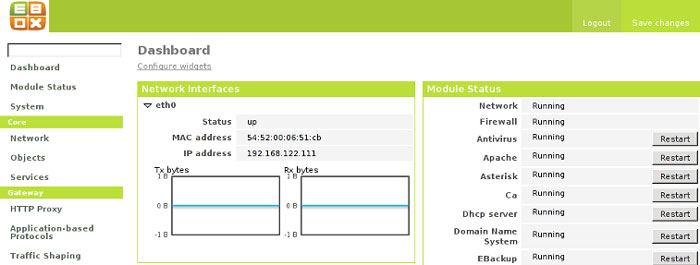
1.4. A first contact with the user interface

Default URL to access to eBox administration interface is https://hostname/eBox, where hostname is the IP address or the hostname where eBox is installed.

User interface is divided on three main parts:

Left vertical menu

Left vertical menu, which is located at the left zone, has links to every service that can be configured with eBox. When any service has been selected in this menu, then a new submenu of the former service could appear. This submenu will let you configure and ask for the contents of each aspects of this service.

Horizontal upper menu

Horizontal menu, located at the upper zone, has links to save the new changed made on contents part and make them real and to log out from the application.

Main Content

The content, which fits the central zone, has one or more forms with information about the service configuration, selected through the vertical left menu and/or its submenus. Sometimes, on the upper part of the content zone, will appear a tab bar, which will represent different subsections for the section we have accessed.

Note

eBox items position could be modified anytime in future development.

An important detail of eBox is its way to do effective every change on the application. In other words, how and when changes will be saved.

Warning

First, changes should be accepted on the current form, but it's needed to click on Save Changes (at the Horizontal upper menu) to make effective this changes and save them permanently. If you don't follow these simple steps, you will lose every single change you had made during the session.

There are some exceptions when it's not necessary to "Save Changes". Just enough doing an action on the form where we are will make the work. These are the cases:

Users and groups management

To add, modify or delete users or groups are immediate actions, and it's not necessary to "Save Changes" to make them effective.

NTP Server

Date and time zone adjust for our system does not require changes save, either.

Certificate Management

The creation,revokation and renewal of certificates from the Certification Authority is done directly.

Language Changes

Interface language change is automatic and it's not needed to be saved permanently. It can be changed the eBox language on SystemGeneral

Restart Services

Chapter 2. System configuration

2.1. User interface general configuration

Interface general configuration is accessed through SystemGeneral from the left menu.

From this section you can make three major changes over the eBox management interface:

Password change

It allows the password modification to administrate eBox.

Language Selection

eBox can show its information on different languages. You could choose them here.

Management interface TCP Port

TCP Port where eBox management interface is bound.

2.1.1. Password change

To change your password, you should enter current password, for security reasons, and the new one twice, so it can be confirmed. Next, you have to accept the input data and not forgive that it's mandatory to save changes, using the upper menu, to make them definitive.

2.1.2. Language selection

Select your preferred language from the list and confirm your changes by submitting the form. This time won't be necessary to "Save Changes" to make it effective.

2.1.3. Management Interface TCP Port

If the port value is changed to something different to 443, form is submitted and changed are saved, you will be able to access to eBox typing: https://hostname:PORT/eBox on your browser, with PORT as the new PORT value. For instance: https://www.warp.es:444/eBox.

Note

Please, remember that after saving changes of the management interface port, some seconds are needed before eBox can work on the new port.

2.2. Backup

You can get eBox backups management through SystemBackup from the left menu.

From the backup page, you can make a copy of the last saved eBox state or restore previous saved backups. Two backup modes are available in eBox which are described below.

2.2.1. Backup modes

Configuration Backup

Backs up only the configuration from eBox including all managed services. Its size could be a few KBs.

Full Backup

Backs up the eBox configuration and other data which are not necessary for eBox to work. For example, it stores files from shared directories or log messages. Its size is larger than previous mode and can occupy GBs. It can be used to restore only configuration part because it is wrapped inside.

2.2.2. Saving your current state

Both backup modes need a description and can be stored in hard disk or in a removable device such as CD and DVD.

In first case, when backup is done, a new entry will appear on the backups' list, showing date, description and possible actions related to the recent backup.

If you want to save a copy in a CD/DVD, you should have a writer installed in your eBox machine and enter a blank or re-writable disk. This backup will be stored in the disk and it won't appear in backup list anymore.

Note

It is important to remember that the backed up configuration is the last saved configuration through the top-right "Save changes" button.

If you insert a re-writable CD/DVD, the content which remained inside would be replaced with the eBox backup.

2.2.3. Backup Restore

There are three different ways to restore a backup.

  1. You can recover an eBox backup from a file browsing in your own system clicking Browse... and do restore after setting an eBox backup file.

  2. The eBox backup can be stored in a removable disk as well. After inserting a CD/DVD with an eBox backup, with Restore from disk the eBox saved state in this kind of storage devices can be restored.

  3. Finally, an eBox backup can be restored from the backups' list which is explained in detail in Section 2.2.4.

In order to restore a backup, two different restore mode can be done:

  1. Full Restore: Available from a full backup mode, everything kept in this backup can be restored.

  2. Configuration Restore: Available from both backup modes. It just restores the configuration state for eBox.

Then, you should check it to see if it is all correct or make the appropriate changes and, finally, save it.

2.2.4. Backups' list

Backups' list has the eBox backups made during its working period. Actions on each element from that list, located at the right, let restore a backup, download a file with a backup, store the backup a removable device (CD/DVD) or remove a backup from the eBox.

2.3. System Halt/Reboot

Our web interface to halt or reboot the computer where eBox is installed in, is reachable through SystemHalt/Reboot.

You shouldn't forget that if your eBox system is your Internet gateway, you will lose connection to the global network meanwhile eBox is halt.

2.4. Bug reports generation

If you find a problem while eBox is running, you can fill a file with the bug report at SystemBug report and send it by e-mail to support@ebox-platform.com

2.5. Date/Time Configuration

You can access to date/time configuration in SystemDate/Time and SystemTimezone .

At SystemDate/Time , you can adjust eBox date and time. There are two different options to adjust date and time correctly: by hand, setting as "Disabled" NTP Server synchronisation, and using an external NTP Server, setting as "Enabled" NTP synchronisation.

By hand

If synchronisation with other NTP server is disabled, date and time adjust will be manual. Selecting corresponding values, shown in the page, for system date and time values.

Using another NTP Server

If date/time synchronisation with a NTP Server is enabled, another configuration will be shown, where you can specify until a maximum of three NTP Servers where eBox will ask for date and time, using current timezone from the system configuration.

At SystemTimezone you can configure the system timezone. You just need to select you geographic zone from the list at the left, and a city from the list at the right, both belonging your time zone, and accept your configuration.

Warning

When you make a change, it is possible your system becomes unstable, so you'd better to restart the whole machine after saving changes.

2.6. Module status

Each eBox module status is managed from here instead of having to enable every module from one of its configuration page. This allows us to have in a single sight which modules are enabled analogously the module summary in Summary page. Each eBox module is disabled by default including base modules such as Network (Chapter 3) or Firewall (Chapter 6).

There are modules which depends on another to be enabled. In a typical installation, for example, the squid module has a chain of dependencies to be enabled as shown: squid -> firewall -> network. So to enable Squid module, firstly the dependant modules must be enabled first. A module may have multiple module dependencies to work.

The first time you enable a module, eBox will ask to perform several actions and file modifications that you must accept explicitly to enable the module. This is so to comply the Debian policy which indicate that every package must manage its own data and if it modifies configuration/data from other packages the user must accept explicitly those modifications. Every action to perform has a reason which is explained accordingly. Until you save changes, the modules that you may enable would not be committed.

Every time a user make a modification in an eBox-controlled file, eBox will realise that a change may be done when saving changes. And it will ask you again to override your changes. This monitoring is only done on those modules which are enabled. If every configuration setting is done through eBox UI, no more dialogues of this kind will be shown.

In order to disable a module, just click status column of the desired module. If the module is a dependency from other modules, this action will disable them as well.

Chapter 3. Network Configuration

3.1. Network interfaces

You can enter into network interfaces configuration at NetworkInterfaces at the left menu.

For each network interface we can choose a new name and its configuration. Available configurations are:

Static

It will assign permanently an IP address to the network interface. Once you have chosen the configuration, you can set if this network interface is external[1], its IP address and its network mask.

DHCP

When you select this option for configuration, the network interface will be configured dynamically if a DHCP Server exists on the network. The only configuration parameter is the ability to be an external interface.

Trunk 802.1Q

When this method is selected, the interface applies a mechanism which allows multiple bridged networks to transparently share the same physical network link without leakage of information between networks, i.e. doing trunking.

Not configured

Network interface won't be configured.

3.1.1. Virtual interfaces

A virtual interface is the one which is attached to a real one, and it is used to listen or serve another IP address apart from the real one, that is, the real interface can assist two or more networks just creating as many virtual interfaces as needed.

It's possible to create new virtual interfaces bound to any interface configured as static.

Once you have configured static interface, a form will be shown to add virtual interfaces, where you can assign their name, IP address and network mask.

3.2. DNS Servers

You can set IP addresses for the name servers that you want to use to resolve host names. You may set as many name servers as you want, the first one is primary one which whether it becomes down, the secondary one is used instead and so on.

Warning

You have to remember that, if your network interfaces are configured with DHCP, your network settings could be overwritten.

3.3. Diagnostic tools

You can use this tools to check if your network settings are correct.

Selecting NetworkDiagnostics you could make a ping to a reachable host through your network interfaces, or you can resolve a domain name.

The output of this operations will be shown on this page, corresponding with the standard output of the GNU/Linux commands ping and dig.

3.4. Gateways

Through this section you can set the gateways where your network traffic is directed. It is very useful in order to split or do balance your Internet traffic.

Choosing NetworkGateways you could add as many gateways as you want. The following attributes are required when adding a gateway:

Name

It is the logical name associated to the gateway in eBox which is used in other eBox modules. It should be unique.

IP Address

The static gateway IP address. Its value has to be unique as well.

Interface

The interface from where the gateway is reachable. That is, it is the interface where packets can be routed to get to the gateway.

Upload

The maximum upload rate (in Kilobits per second) you can have towards the connection from eBox to the gateway. It will surely depend on the sort of connection provided by your ISP.

Download

The maximum download rate (in Kilobits per second) you can obtain towards the connection from the gateway to eBox.

Weight

It is the weight associated to this gateway. It is used by balance traffic section to apply special rules applied to multiple gateways.

Default

It is set to determine whether the gateway is the default one or not. This implies that any packet which does not have a explicit gateway to be routed through will come out through the default one. Note that just one gateway can be the default one at the same time.

Warning

Each gateway should be reachable from at least one interface. eBox checks so for each interface whose configuration is static. If the interface is configured via DHCP, this inspection will be skipped since it is impossible to determine.

The correct values for upload and download rate are critical to ensure the correct functionality from traffic shaping module.

Once you have added a gateway, it will appear at the Gateway list . Then, you can delete it or edit the values set previously through the icons which appear on the right side of the list.

3.5. Balance traffic and multigateway rules

3.5.1. Requirements

In order to use these two features, at least two gateways configured are required. Check out this section to know how to create them.

3.5.2. Balance traffic

You can enable traffic balancing via NetworkBalance traffic in order to share your traffic through different routes. The traffic distribution relies on a weighted sum from the gateway weights which are set on gateway attributes (See Gateways section to know how configured them).

A typical configuration could be as follows: you have two gateways configured where one has the double rate capacity (A) than the other one (B). Thus you may want to balance traffic in 2:1 proportion, that is, gateway A will deliver the double traffic than B. To achieve so, you should set the weight parameter to A to 2 and gateway B will have weight set to 1.

3.5.3. Multigateway rules

It may be needed to route explicitly traffic by a certain gateway, to do so, you should use the multigateway rules which mark the packets to be delivered through the gateway selected.

The packets are matched depending on the rules given to be directed to the asked gateway. You can select the traffic according to the following factors:

Protocol

It could be TCP, UDP or any.

Interface

The source interface where traffic comes from. The list only includes internal interfaces.

Source

You can select a source IP address or an eBox network object. (See this chapter for details)

Source port

You can choose a source port. You must select a protocol different from any to be able to direct traffic depending on the source port.

Destination

You can select a destination IP address or an eBox network object.

Destination port

You can choose a destination port. The same policy from source port is applied here.

After editing at least one of the factors you can select a previously defined gateway to direct traffic which matches with the defined attributes.

Once the rule has been added to the multigateway rule list, you may edit or delete a previous defined rule through its icons depicted on its right side.

3.6. Routes

In advanced configurations, defining a set of gateways and rules to applied them is not sufficient. Thus the user defined Example 3.1 routing table may help:

Example 3.1. Static route use case

I have some machines that are on the outside, connected to the external LAN of the eBox and I would like all users who connect to VPN server to connect to those machines via the VPN tunnel.


In those cases, we may use static routes. This table specifies those networks whose traffic is redirected to a fixed gateway, which must be reachable from eBox host. Each route must have an unique network to route. Moreover, an optional description is provided to allow administrator to add information to the route and ease so the maintenance.


[1] On eBox, an interface is defined as external when its connection is directed to Internet. For instance, its IP address can be an static public one. However, internal interface is those where clients from your internal network are connected.

Chapter 4. Network objects

4.1. What the network objects are?

Network objects are an easy way to give a name to a network item, or a group of them. They are used to simplify network configuration management, allowing you to choose different behaviors for each item or group of them with just a descriptive name.

Network objects can be used, for instance, to five a name to an IP or a group of IPs. If the object is a group of IPs, instead of defining some rules for each IP, every IP inside the object will acquire that configuration.

4.2. Network objects management

Network objects used by eBox can be created, modified and erased in an easy and intuitive way using the web interface.

You may add as many objects you want. A name must be provided to the object. After that, you may enter into members field where you may define:

  • Name : name assigned to the member.

  • IP address : member IP address

  • Network mask : network mask, using CIDR notation

  • MAC (optional): hardware address -or MAC address- of the network interface corresponding to that IP address.

Editing an object or a member of it is done by clicking the pencil icon in Action field. Likewise the object/member removal is done by clicking on the trash can icon.

Chapter 5. Network services

5.1. Network services in eBox

As it happened in Chapter 4, the network services are an abstraction to ease the management of your network. Each network service describes a set of ports for Internet protocols where service accepts requests. Providing a name plus an optional description allows you to manage the network service policies more intuitively and less error-prone.

The network services are used by firewall module (Chapter 6) and traffic shaping module (Chapter 19). Anyway, as eBox philosophy every feature which use a network service must use this module to work with and ease the administration life.

5.2. Network services management

In order to get the network service management you may go to Services.

As you may notice, there are several services which have been created by eBox for you. These services are used by eBox modules afterwards. For instance, dhcp service is described as an internal service called 'Dynamic Host Configuration Protocol'.This service is read-only as it is already managed by dhcp module automatically. Each service has a configuration where the service protocol, well-known source and destination ports are set. There are three special services which define the generic abstraction for every service (any) and every TCP/UDP service. They are entered to handle easily rules defined in other modules that depends on this network services.

You may input a new service with these following elements:

Service name

The name for the service which refers uniquely this service in the system

Description

This field defines the verbose description for the network service to ease the administration management. It is an optional field.

Internal

When a network service is set as internal, those protocol/port pairs that owns this service will be set as busy, that is not available for others services to use.

Configuration

The service configuration is a multiple value configuration setting which may contain these three elements:

Protocol

The Internet protocol which may set one of these values: TCP/UDP, TCP, UDP, GRE, ICMP or "any". If the protocol is set to GRE or ICMP, then it is banned to set any port since it is banned by protocol construction

Source port

A well-known source port may contain one of the following:

  • Any. Indicates any port for that protocol or set of them

  • Single port. Indicates a single port for that protocol or set of them

  • Port range. Indicates a port range including all of them for that protocol or set of them

Destination port

Analogously with source port, the same elements appear in destination port.

You might inspect several system-defined services prior to add your own ones. Anyway, a user-defined service may be created when additional network services be installed on top of an eBox installation, for example introducing FTP (File Transfer Protocol) service.

Example 5.1. Service configuration example

  • Service name. ftp

  • Description. File Transfer Protocol

  • Internal. yes

  • Configuration: 

    • protocol: tcp, source port: any, destination port: 20 (Define the control connection channel)

    • protocol: tcp, source port: any, destination port: 21 (Define the data flow connection channel)


Chapter 6. Firewall

6.1. Firewall in eBox

One of the most important features in eBox is its firewall module. You can access it through Firewall . There you can make packet filtering (Section 6.3) or port redirection (Section 6.2).

The firewall has different behaviour with external or internal network interfaces.

The internal interfaces are connected to local networks. They had not restrictions as the external interfaces have.

The external interfaces are connected to external networks and eBox only allows redirections from them.

6.2. Port Redirects

Port redirects allow to get external traffic into a host behind a eBox system with firewall module installed. You can get the configuration of these options at FirewallRedirects .

If you need to add a new redirect, first select your desired Interface which will listen incoming connections. This should be one of the interfaces previously selected as external. Moreover, it should be assigned the External port where you expect your incoming traffic, and the protocol that will be used.

You should enter the destination system IP address and its Port where packets would go on.

Once you have selected this data, you just need to select between the different Actions, the Add one, and click on it.

To remove a rule, you should select remove between the available Actions, and click on it.

Redirect configuration can be modified by changing its parameters and clicking on their modify Actions.

6.3. Packet filter

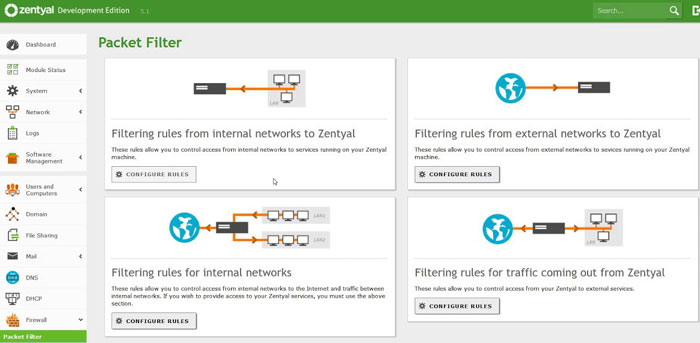
From FirewallPacket filter you can configure packet filter rules. You may use the abstractions provided above such as network services and network objects. Using these concepts enhances the rules flexibility and clearness, reducing the amount.

At first sight, we have five different traffic flows to set your firewall rules to them.

From internal networks to eBox

These rules are meant to control access from internal network interfaces to services running on your eBox machine. Several eBox modules may add filtering rules for you to manage eBox services easily.

For internal networks

These rules allow you to control access from your internal networks to the Internet, and traffic between your internal networks.

Coming out from eBox

These rules allow you to control access from eBox to external services.

From external networks to eBox

These rules allow you to control access from external networks to services running on your eBox machine.

From external networks to internal networks

These rules allow you to control access from external networks to internal networks.

Take into account to the last two set of rules that it is granted access to untrusted networks to your managed networks. This may compromise your network security. As eBox secure by default policy recommends, do not modify these rules unless you know what you are doing. The figure Figure 6.1 try to make up the concept:

Figure 6.1. Firewall rules set

Firewall rules set

The deny policy for eBox firewall is a ignorance one. Every denied packet is filtered and discarded without any notification.

Every set of rules define a fixed behaviour for the traffic flows that they apply. These rules will be matched from top to the bottom, thus order is important. Each rule consists of these following fields, some of them are only available to several rule set by construction:

Decision

Accept or deny. This explicitly accepts or denies a traffic flow.

Source

The traffic flow origin. It may be a network object or a single IP address. This field is available for every rule set except for "Filtering rules for traffic coming out from eBox"

Destination

The traffic flow target. It may be a network object or a single IP address. This field is available for "For internal networks", "Coming out from eBox" and "From external networks to internal networks" filtering rules.

Service

The traffic flow service as it is described in Chapter 5. The match could be inverse one, i.e. the inverse "any" service is "none" service. This is a compulsory field, therefore in order to create a new rule, it is required to have a network service. If it does not exist, you must make up previously.

Description

An optional description to ease the firewall rule set management.

Chapter 7. System updates

7.1. Configuration

eBox can automatically upgrade your system software. This option can be enable at SoftwareConfiguration

When you make automatic the system software update, it will be easier to keep an up-to-date system, avoiding possible bugs or security problems as soon as a solution appear.

Warning

For all these eBox software management module's functionalities, it is needed the Operating System is Debian GNU/Linux.

7.2. eBox components

At SoftwareeBox components you can install, upgrade or remove different existing eBox packages. Some packages won't be uninstalled, so these are needed for eBox correct working.

7.3. System updates

You can manage the software at the system where eBox is installed with the same ease as components management.

Chapter 8. HTTP Proxy

8.1. General configuration

Through HTTP ProxyGeneral you can access into the eBox's proxy HTTP general configuration.

At the configuration window these options are detailed:

Transparent proxy

If transparent proxy is enabled, every eBox user will use the transparent proxy without noticing it. If it is disabled, you should configure each browser to work through the proxy.

Warning

Transparent proxy feature is only working when eBox has at least an internal and an external interface

Port

You can assign a proxy port. It will be used by the browsers, inside the network, to connect to Internet.

Default policy

It is the default policy for the proxy users. Free (allow all) access, filter contents or always deny access can be selected. Later, this policy can be modified for each network object where you need an specific behaviour, as it is explained below

Warning

If you establish a configuration which denies access to administration interface from the machines connected to eBox, you should allow the host where you want to connect from, or you could lose the connection with the web interface.

8.2. Filter settings

At HTTP ProxyFilter settings, you can select the filter settings to those elements of this network which set their policy to filter.

Warning

The filter needs a 'filter' policy to be in effect

You may set the content filter threshold which establishes a restriction level to web contents with explicit sex and violence items to be filtered by the proxy.

To perform a more detailed filter policy. A tab menu is shown with the following elements:

File extensions filtering

You may choose which file extensions are allowed to be downloaded through the HTTP proxy. To allow extensions you must edit the row and check the box in the Allow element. A special "All extensions" form exists to apply the same policy to all extensions at once. You may add as many extensions you require by adding new ones. Several ones are set by eBox.

Any extension not listed here is, by default, allowed. In future releases, this behaviour may change.

MIME type filtering

You may select which file MIME types are allowed to be downloaded through the HTTP proxy. The management is analogous to the extension filtering explained above.

Domains filtering

You may customise which domains are allowed or denied to visit by editing the table Domains list. Write the full domain name, whose default behaviour you require to change. The domain name does not require the "www" string. For instance, you add as allowed domain "www.warp.es", we'd set "warp.es" domain.

Furthermore, you may block those domain sites which are not in the domains list overriding default allowance policy. It also let block those sites which does not have a fully qualified name (FQDN) and, therefore, they use an IP address to access to their content

8.3. Policy establishment

Through HTTP ProxyObjects' Policy it is possible to establish one connection policy for every network object, allowing a different configuration for each newly created objects. This configuration will be applied previously to the eBox global policy for the selected objects.

Chapter 9. NTP Server

Table of Contents

9.1. NTP Server

9.1. NTP Server

NTP server can only be enabled or disabled at Module status by clicking on "enable" at its row as it is explained in Section 2.6.

If it's "Enabled", clients with eBox as NTP Server will have its date and time configuration synchronised with eBox one, whose configuration can be configured following the instructions at Date/time configuration.

Chapter 10. User management

10.1. User accounts

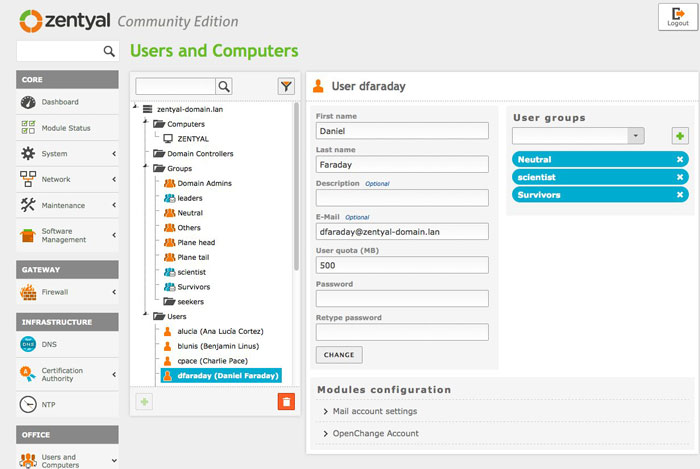
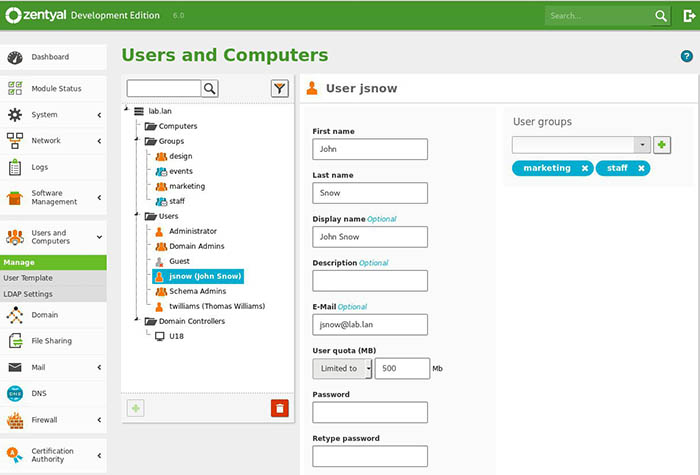
Through UsersAdd user is possible to create eBox users and modify their configuration.

If you want to create a user, you just need to enter required information on the form, at the configuration window, and click Create. There are fields to enter user name, real name, user comments, its password (with confirmation) and its user group which will belong to, if any.

After that, configuration for each created user can be modified, selecting the user from the table available at UsersEdit User and click on Pencil icon.

User edit window is dynamic, which means that its content can change depending on the eBox modules installed. There are two parts that will ever exist: on the upper zone, general user information will be shown to give the chance to modify it, including its comment, name and password (with confirmation); on the bottom you can see a Delete button that you can click to remove the eBox user, and its dependencies with the installed modules. Between these parts, new information about each installed and enabled eBox modules can appear, including user-related options about: mail accounts, file sharing, printers sharing...Each section is explained in the module which belongs to.

10.2. User groups

Entering into Groups you can create new groups or edit current groups configuration.

To create a new group, you just need to enter a group name, a comment about the group (optional) and click "Create".

If you want to edit a group, you have to follow the same procedure as with users. Just select it from the selection list at the bottom part and click Edit.

Group edit window is dynamic as users edit window is. It includes the same two blocks: first one to edit comment group and choose which users belongs to the group, and the second one to Delete the selected group and all the dependencies with the installed modules. Between these two parts, group-related information of each eBox module installed, will be shown here.

Chapter 11. Printers

11.1. Add new printers

You can add new printers on eBox at PrintersAdd printer . Each new printer could be shared on your network, allowing or not users and groups accesses.

Adding a new printer requires to know some information like how it's connected with eBox, manufacturer, model and driver if you want to get a full-working system. eBox will ask the information and will offer existing possibilities to configure the new printer.

11.2. Printers administration

Going into PrintersPrinters admin you can access into eBox printer administration.

We can review and modify the printer sharing current status in the system, and see the printer list configured on the system. We also can remove them from eBox or modify its status and its current parameters.

Any moment after the addition of a new printer, you can remove it clicking at its own corresponding action, or access to its specific configuration clicking at "Edit" on that printer.

If you decide to edit the printer configuration, a four-tabbed windows will appear, which give access to each configuration item on the printer management:

Printer details

You can review and modify every details related to manufacturer, model and driver about selected printer.

Driver options

Configuration options depends on the installed driver. eBox will show, frequently, a list with the possible values for each option, making easier the configuration, and avoiding incorrect values of configured parameters.

Configuration options

This part allows to modify the printer connection method with eBox. Depending on if it's USB, parallel port or samba, configuration options will be different.

Pending jobs

Pending jobs of the selected printer are shown. For each job is shown its ID, owner, name, size and creation date. A job can be also cancelled using its action button, removing it from the job list.

Chapter 12. File sharing

12.1. File Sharing

You can get into file sharing configuration entering into File sharing . To activate file sharing, check out Section 2.6 for details on how to do it.

There are two working modes to this module. It can behave as a simple File Server using SMB/CIFS protocols or as well as a centralized authenticate method using Primary Domain Controller (PDC) to login on Windows NT-based.

Both working modes needs the following fields configured:

Domain name

Only machines and users who belong to the same domain can share their files between them. With this name eBox will be recognize within the local network.

Netbios name

Name applied to old NetBIOS framework which makes eBox have a name within Windows environment.

Description

eBox description which goes with the Netbios name to provide a detailed description within the network.

Quota limit

Quota disk limit on MB to use for each user. If you don't want to set any quota is OK to fill this field with zero value.

This list of settings makes only sense in PDC mode:

Roaming profiles

Roaming profiles are a set of directories which contains a set of configuration settings from a Windows™ machine which belongs to the domain. Those directories are stored in the server host if this option is enabled. Default value is disabled because of the LAN traffic overload when starting up a machine since every directory should be downloaded from the server which may include mail boxes and more data...

12.2. User and group shared folders

If file sharing module is installed and enabled in eBox, you may want to share files among users within the same group or publish files within the local network. To achieve so, you should go into Users and edit the user which can publish files on the local network. There, you can enable this user to do so and , furthermore, you can set him administrative rights to add machines to the domain, if the working mode is PDC. Check User accounts to know more about the eBox user configuration.

If you want to share a directory among the users within a group, you should reach Groups and edit the group you want. There you can set a name to that directory.

Note

The current file permission allows to read, write and execute a file to the owner and read, write and execute to the group. Regarding to subdirectories, the setgid bit is set, so subdirectories group owner will be the group. Furthermore, the new subdirectories will have full access to the group.

Chapter 13. Mail server

13.1. General Settings

To enter at the General settings on the eBox mail server, go to MailGeneral . At the configuration page, upper zone, some tabs will be shown to configure different things on the mail server:

Services

Choosing services tab, we may ask for authentication to mail users or allow free access, and use (or not) TLS to cipher communications between server and client. Also, you can enable POP3 and IMAP requiring users to use SSL, just allowing them the decision or deny SSL use.

Configuration

The configuration shown below this tab, allow to set a relay server, simply using its IP address. It also allows to set a maximum message limit, accepted by the server, and a default size limit for the new mail accounts. At the bottom, you can set the relay policy for each network object, which have a higher priority over the general configuration option at Services tab.

External filter

From this tab, you can enable an external filter to control eBox mail messages. To enable it, we need to set a port on eBox system to establish communications, and know IP address and port where the filter is located.

13.2. Domain management

At MailVirtual domains you can manage virtual domains, which give a name domain to the mail accounts of the different eBox users.

To create a new domain, you just need to choose a name for the domain and a default size for the eBox users' mailboxes who belong to the domain. Later, you can modify the default mailbox size and force changes at existing mailboxes to any size, from the menu you can find clicking at Edit for the desired domain. If you want to remove one existing domain, just click at the Remove button for that domain.

13.3. Accounts and mail aliases

If mail module is installed and enabled in eBox, and you wish to create one mail account to a user, it must be done going into Users and editing our desired user, where you can also set an alias for the user mail address. Check User accounts to know more about the eBox user configuration.

To set an alias to user groups, you have to get the group configuration page using Groups . If mail module is enabled, an alias can be set for all group members. Check User groups to know how to get to group configuration.

Chapter 14. DHCP Server

Table of Contents

14.1. DHCP Server

14.1. DHCP Server

You can enter into DHCP Server configuration going into DHCP .

You just will be able to configure DHCP server if there is any network interface declared as Static. If there are different interfaces set as static, you could choose which one will be configured through the selection element. DHCP server works as well with virtual static interfaces. In order to serve IP addresses in a static interface is required to set at least a range or a fixed address mapping.

If you want to enable DHCP server, check out Section 2.6 for details to do so.

Working configuration about DHCP server can be adjusted with these options:

Options

There are two tabs to set the options for the DHCP server in that interface.

Common options

These options set:

Default gateway

Indicate DHCP clients which is the next step to go if they don't know how to reach the destination. Their values may be eBox itself, a custom IP address in CIDR format, none or a configured gateway done in Section 3.4.

Search domain

Indicate DHCP clients which is the search domain to add when a not fully qualified domain is given to the DNS. Its value may be a custom one, none or one of the configured in the DNS module.

Primary nameserver

Indicate DHCP clients which is the primary name server to ask for domain name - IP address queries. Its value may be the eBox itself, a custom one using its IP address or none.

Secondary nameserver

Indicate DHCP clients which is the secondary name server to ask for domain name - IP address queries when the primary one is down. Its value is optional and it must a valid host IP address.

Advanced options

These set of options are managed only advanced users to determine a leased time and thin client options.

Lease times

The leased time is those which a given IP address is set as valid by the DHCP server. You may modify the default values to set a new default one and a maximum one as well.

Thin client

These options allows to use eBox as a thin client (proxy) server. It acts as proxy thin client server when the next server option points to another computer. If it set as thin client server by setting the option as eBox, then you may include all files to load in thin client such as boot files and parameters in a fixed directory as help outputs.

Ranges

Range lists can be created with some values you would like to assign to network hosts. These lists must not have matches between them and every allocatable addresses must belong to the available range shown above the ranges list.

Static assignments

A fixed IP can be assigned (if belongs to the available range) to a MAC address from the network. You just need to create an item at the static assignation list which has the MAC address and the required IP address.

Take into account that every setting in ranges list and fixed address mappings must not overlap each other. Not only in the same interface but also in the remainder ones. These checks are done automatically by eBox.

Chapter 15. DNS service

The DNS service can work just as a DNS cache server, or as a proper DNS server to answer queries for your local domains.

15.1. DNS cache

When the DNS service is enabled it will automatically work as a DNS cache service, that is, several DNS requests will be resolved as an only external DNS request, reducing response time and network traffic with most visited hosts.

15.2. DNS server

There is a more advanced feature that will allow you to create domains for your local network. This is very useful if you want your users to use host names for your local machines instead of recalling IPs.

The DNS service in eBox features a simple to use server which allows you to add domains. And within each domain, you can add hosts and aliases for each one of them. Note that it lacks features such as zone transfers, subdomains and so forth. Those add-ons will be added in the future.

Domains

You can add as many domains as you need. Remember that your hosts will be added taking a domain as a root.

To add a domain, go to DNS, and just type a domain's name in the table placed below the title. As we mentioned you can add as many domains as you need.

Hosts

The next step, after creating a domain, is adding host names to the domain. What you are doing here is binding an IP address to a host name.

To add a host name, you must edit the domain you would like to add the host to. To do so, click on the pencil icon in the domain table. A new screen will show up. In this new screen you will be able to add a host name and its corresponding IP.

In case of having an IP address with more than one name associated to it, you may add aliases right below the first host name added.

Mail exchangers

Each domain may contain mail exchangers (MX records), which in Domain Name System jargon are those hosts which serve the electronic mail service, that is, the SMTP (Mail) Server.

Each MX record consists of a host name, which may belongs to the same domain, i.e. one of the previously defined hosts or a custom one from a foreign domain. The preference value determined which mail server will be tried first to send a mail to the domain. The smallest preference number has the highest priority. The allowed interval is (0, 65535). The table is ordered by the preference value.

Once you have defined your MX records, you may create a virtual domain in the mail module with the same domain name as defined here. Therefore your local mail system would work smoothly.

Moreover, reverse mapping is done as well automatically by the module. Every host which has an IP address associated with, the inverse relation is done as well.

Chapter 16. Jabber Server

Table of Contents

16.1. Jabber Server

16.1. Jabber Server

You can get to Jabber server configuration at Jabber and with each user options.

Jabber server configures a instant messenger network access, for a local network or with external connection. It also handles authentication per-user, allowing or not its access to each one.

If you want to enable Jabber server, check out Section 2.6 for details to do so.

You can configure Jabber server behavior by setting these options:

Domain Name

Every account on a Jabber server has this syntax: user@domain. Users shall use this syntax on their IM clients to chat. For this reason, the domain name should be resolved by the user's PC, and resolved by the rest of Internet if external access is configured.

Global Jabber network connection

Jabber server can be part of the planet-wide Jabber network; or work as a stand-alone server on a corporative network. This option allows to select its behavior.

SSL Support

Authentication and data transmission between Jabber user and the server can be made of three different ways:

  • First, selecting "No" value will make a plain communication between both parts.

  • Second option, "Optional". It allows the user to choose if communication with the server should be encrypted, with SSL, or plain.

  • Last, if SSL access is "Required", IM client must allow SSL authentication to get connected to Jabber server.

On each user configuration, we can find two new options for its Jabber access configuration:

User account

It can be checked or not, which will allow the user access to the Jabber server.

User has administration rights

A user with administration privileges can be notified with some server events, or make some actions only available to admin users. Please, check Jabber documentation if you need to know about the full set of privileges of a Jabber network administrator.

Chapter 17. Certification Authority Management

17.1. Prerequisites

A basic knowledge of public key infrastructure is needed to understand and use this module. You can find a good introduction at the Wikipedia article about PKI.

17.2. Overview of Certification Authority Management

You can get to Certification Authority (CA) Management at Certificate Manager

The CA Management purpose is to allow the issue of certificates, which can be used by another eBox modules or external applications.

The certificates are issued using a CA's certificate which will be created with this module.

17.3. CA's certificate creation

Firstly, in order to use certificate, issuing the CA's certificate is needed signing by itself. This certificate is used to issue 'normal' certificates, so the other module's features would not be available until it exists.

To achieve so, we enter in the module's page and we find a form to create the CA's certificate. The form requires the organization's name and the number of days till the certificate expires.

Warning

Establishing certificate's life, we have to keep in mind that its expiration will also expire any certificate issued with it. This would stop any service which depends on the revoked certificates.

17.4. Certificates creation

Once the CA's certificate is in place, we are able to issue new certificates with it.

In order to do so, we fill the form which appears on the top of the module's page. The mandatory data are the certificate's common name and the number of days until its expiration. This last value is limited by the duration of the CA's certificate.

When the certificate has been issued, it will appear in the certificate's list and it will be available to the remainder eBox modules to use it.

17.5. Actions upon certificates

Through the certificate's list we can access to actions which can be done upon each certificate. The actions available are download files, revoke and renew.

17.5.1. Download files

Clicking in the download icon we will get a compressed archive which contains both the certificate and his public and private keys. In the case of certification authority's certificate, the private key is not supplied in the archive.

17.5.2. Revoke

Through the revoke icon, we can revoke any certificate. After clicking it, we find another form in which we can specify the revocation reason or cancel the action.

Once a certificate is revoked, it will appear in the list but marked as revoked. However, it could not be used by other eBox modules or any external application.

Warning

In case the revoked certificate is the CA's certificate, all certificates generated with the certificate will be automatically revoked.

17.5.3. Renew

You can renew certificates using the renew icon. You are asked about the new certificate's duration.

When renewing a certificate, a revocation and an issue of the new certificate with the same data is done. The eBox modules will be automatically get the new certificate but you will need to supply it manually to external applications.

Warning

If you renew the CA's certificate, all the certificates created with it will be also automatically renewed until at much the CA's certificate expiration date.

Chapter 18. OpenVPN Service

18.1. Virtual Private Network service

You can get to Virtual Private Network (VPN) configuration at OpenVPN .

In order to set up VPN service, you first need to configure a Certification Authority. eBox also provides this service so you can build it up via Certification Authority .

OpenVPN module can configure eBox as OpenVPN server as well as client. As many servers/clients as you want may be configured.

18.2. Typical scenarios

Since VPN is a quite complicated service, we illustrate with two typical scenarios how to configure them with eBox.

18.2.1. Road warrior

You can set up eBox to support Road Warriors. That is, eBox working as a gateway and an OpenVPN server, which has a local area network (LAN) behind, letting clients connect to eBox from WAN (road warriors) in order to access the protected LAN via VPN service. The following figure could show a better picture:

Figure 18.1. Road warrior scenario

Road warrior scenario

Our objective is to connect client 3 with the other two far away clients (1 and 2) and last two each other.

First, we need to create the Certification Authority and certificates for all elements present in the system, the OpenVPN server and the two away clients. Here, this eBox acts as well as Certification Authority.

Note

To obtain detail information about eBox Certification Authority module,check its own part in the manual.

Once we have the certificates, we should set up the OpenVPN server in eBox at Create new server. We should give it a name, a protocol/port pair, a certificate (which have recently created above) and a subnet to work with. The remainder elements can be set by default values. As we see, the OpenVPN server will be listening on all external interfaces, so we need to set at least one of eBox interfaces as external via NetworkInterfaces . In our scenario only two interfaces are needed, an internal one for the LAN and an external one to work in Internet.

After creating the OpenVPN server, we should enable the service and save changes. Then, check out in Status that there is an OpenVPN server fully working.

Afterward, you should add advertised networks, which are those which authorised OpenVPN clients will be able to access. In order to achieve so, you need to have these advertised networks reachable. You can set them on editing the chosen OpenVPN server. In our scenario, you should add local network to make visible client 3 to other two clients.

Now it is high time to configure clients. An OpenVPN client may be configure using our bundles which are available in Servers table and click on Down arrow icon. Two Operating Systems bundles have been created, choose the one you use. If you are using a BSD-like environment such as MacOS™, choose Linux system. Choose those client certificate to give to the client and set the external IP address to the VPN clients must connect. eBox will try to guess it using an Internet Web service. If the selected system is Windows™, the OpenVPN installer for Win32 is included as well. It gives you an archive to be distributed to the client.

The bundle includes the configuration file and the required files to start the VPN connection. For instance, in Linux, just decompress the archive and run into the newly created directory the following command: openvpn --config filename. Now you have access to client 3 from two remote clients. Connecting each other remote clients is necessary to to set Allow client-to-client connections check-box within OpenVPN server configuration. In order to check the configuration is correct, you can see the routing table where advertised networks are added to tapX virtual interface.

18.2.2. Connect two offices with eBox and OpenVPN

This second scenario tries to picture a common use case for eBox. Two offices in different networks require to be connected through a private network. To do so, we are going to use eBox in both local networks as gateways and one as an OpenVPN client and another as a server. The following figure tries to make clearer the situation:

Figure 18.2. eBox OpenVPN server vs. eBox OpenVPN client

eBox OpenVPN server vs. eBox OpenVPN client

Our aim is to connect client 1 in LAN 1 with client 2 in LAN 2 as if they were under the same local network. Therefore we need to set up the OpenVPN server as we do in Section 18.2.1. However, just a pair of changes is needed setting on option Allow eBox-to-eBox tunnels to exchange routes among eBox machines and eBox-to-eBox-tunnel password to perform a little more secure environment among the two offices.

In order to configure eBox as OpenVPN client, we can do it at Create new client button within OpenVPN menu. We should set client's name and active. You may set the client configuration manually giving the required information or automatically using the bundle giving by the server as we have done in Section 18.2.1. The former requires the server service address, required certificates and server's tunnel password as well, and the latter this information is extracted automatically from the bundle. When you save changes, in status summary, you can see the new OpenVPN daemon in LAN 2 running as a client with the connection target to the other eBox within LAN 1.

Chapter 19. Traffic shaping

19.1. Introduction

The traffic shaping module allows you to add rules and establish policies which will help you to do a more efficient use of the Internet connections.

You will be able to set boundaries for protocols and services on your network. That is, you could, for example, set a maximum download or upload rate for certain services such as ssh, http and so forth.

19.2. Requirements

In order to use the traffic shaping module, eBox must be placed as your gateway in your network. That means your installation will have to fulfil the following requirements:

  • At least two network interfaces. One of them connected your local network, and another one marked as external.
  • At least one gateway which must be accessible from your external interface. Also, it is necessary to introduce the bandwidth data for your configured router. That information must be accurate as it is used by the traffic shaping module to compute and control which rates and values are within the valid working range.

19.3. Management

19.3.1. Interface selection

Traffic shaping is applied on a per-interface basis. The behaviour depends on the sort of interface you shape on. If we select external interfaces, the shaping takes place on the traffic coming out from eBox to the Internet. On the other hand, shaping on internal interfaces affects to traffic coming in from the Internet. This is very important when the source and destination values are set. For example, if you want to shape the downloading from a single host, you may set its host address in destination not in source. On the other hand, if you want to shape its uploading rate, you may set its address on the source value.

19.3.2. Rules

19.3.2.1. Matching packets

Once you have selected the network interface, it is time to decide which traffic you would like to shape. To do so, we will add rules.

The first three lines of the rule will be used to match traffic. That is, they will be used as a selector for traffic.

Service

This field is used to match a certain protocol. Note that depending on the protocol you pick, you will have to add more extra data to complete the match. For example, if you select TCP, a new field labelled as Port will pop up. You could either leave it blank to match any port or type certain port.

Source

Source is used to match packets based on their origin. The first thing you will have to do is selecting from the combo box what kind of data you will use to match. You have several options:

Source IP.  You can introduce an IP or leave it blank to match any IP.

Source object.  You can select one of the objects available in eBox. The different members which compose an object will be used to match traffic.

Source MAC.  You can introduce a MAC address to match traffic. Note that this option only makes sense when you are adding rules to an external interface, as you have information about your MAC source addresses belonging to your local network.

Destination

Destination is used to match packets based on their destination. The steps to take are similar to those for Source. First of all, you have to pick an option from the combo box to tell the system which sort of data will be used to carry out the match for the current rule.

Destination IP.  You can introduce an IP or leave it blank to match any IP.

Destination object.  You can select one of the objects available in eBox. The different members which compose an object will be used to match traffic.

19.3.2.2. Shaping decision

Let's recap. In the first three lines of a rule you have selected the kind of traffic you would like to shape. The next step consists of deciding what we would like to do with that traffic. For example, if we are managing a protocol which is very critical for the normal working of our business, it is quite likely that we would like to prioritise it, or set a minimum quality of service for it.

The last three lines of a rule priority, guaranteed rate, and maximum rate are used to make that kind of decision. Let us walk through them to give you a bit of background.

Priority

This field is used to enqueue network packets in different queues with different priorities. Priority ranges from 0 to 7, the smaller priority number, the higher priority. Using this field for different services, destination or source addresses is a good method to establish your prioritasing policy for your network traffic. It is an easy way of assure more priortiity for those services which are critical for your organisation and relegate those which are not.

Guaranteed rate

This field tells eBox which should be the minimum rate for the traffic matching the current rule. The rate ranges from 60 kbits to your connection bandwidth.

You have to take into account two important things. eBox will not allow you to set a guaranteed rate which is impossible to achieve given your connection bandwidth, as usual, if you are adding rules to your external interface you are dealing with your upload capacity, in case of your internal interface, download capacity. If you set the guaranteed rate to zero, you are telling eBox not to assure anything, and it will just do a best-effort for that kind of traffic.

Maximum rate

If the guaranteed rate field sets a lower boundary for the rate, this field can be used to put a ceiling on the upload or download rate that (your matched by the rule) traffic can reach.

By setting this field to zero, you are telling eBox not to set any ceiling.

Chapter 20. eBox control center

20.1. Control center description

The eBox control center is intended to manage simultaneously several eBoxes at the same time using a very secure channel to communicate the center with the sparse eBoxes. The Figure 20.1 indicates how a single element, the Control Center, can send instructions, basically actions which every eBox module may perform and expose in its public API, which each eBox performs independently answering back with a response to the control center when the action has been accomplished.

Figure 20.1. Control center scenario

Control center scenario


In order to provide a secure connection, a Virtual Private Network (VPN) is used as link layer and Secure HyperText Transfer Protocol (HTTPS) as transport layer. This dual lock assures the communication between the control center and its eBoxes is protected and the performance is not really decreased as the required bandwidth to set a system configuration can be considered minimal.

Over HTTPS, SOAP protocol is used to exchange XML-based messages between the control center and the eBox's group. The message pattern is a remote procedure call (RPC) one which the control center asks the eBoxes to do something and the eBox responds immediately. An answer may be given back. Furthermore, a state is also provided since a remote eBox "object" is handled to exchanges the messages that allows the control center manager set a configuration and then save changes in a single SOAP session.

The communication among the elements may be full duplex. The control center send actions to be performed by the eBox's group and, on the other hand, every eBox can send information about itself or any of its services using the eBox event framework. This information is gathered into the log system which could be better exploited in the future to supervise several eBoxes at one time.

20.2. Control center and eBox communication

In this section, we are going to describe to set up a control center, join/quit eBox to the group and configure eBox to make the communication between both elements work. In order to have this scheme ready, two different machines are required, one holding an eBox and the other one with a simple Debian Sarge.

The process uses a subscription pattern. The control center is the only one which knows who can connect to the network and the eBox must have a private element, known here as bundle, to subscribe.

20.2.1. Control center setup

The machine which holds the control center is required to be a Debian Sarge system. To install it, use the Debian package provided in the eBox repositories with ebox-control-center name.

The installation process asks you some several questions which default values can be mainly used. The following list describes them deeper:

Public IP Address

This IP address will be used by the VPN daemon to communicate with the eBoxes and it may reach Internet. The address must use a static method to resolve its value.

SOAP port

The control center has a SOAP server to listen to the events which happen in its eBoxes. The port must be free within the machine to bind the server.

Virtual Private Network address

This network address (in CIDR notation) is used to have all the eBoxes using the same virtual LAN using a ciphered channel. The control center will have the first available direction and subsequently, the eBox will receive the lower possible addresses. That is, if you choose a 10.0.0.0/24 network address, 10.0.0.1/32 address will be used by the control center and the 10.0.0.2/32 will be used by the first eBox joined. Needless to say, the eBox's group will consist of a maximum of 255 eBoxes and a control center.

VPN protocol and port

The protocol and port that the link layer will use. If you do not have any sp